Parental Controls in Kids' AI Apps: Usage Limits, Chat Review, and Data Deletion Explained
• KidTalk Team
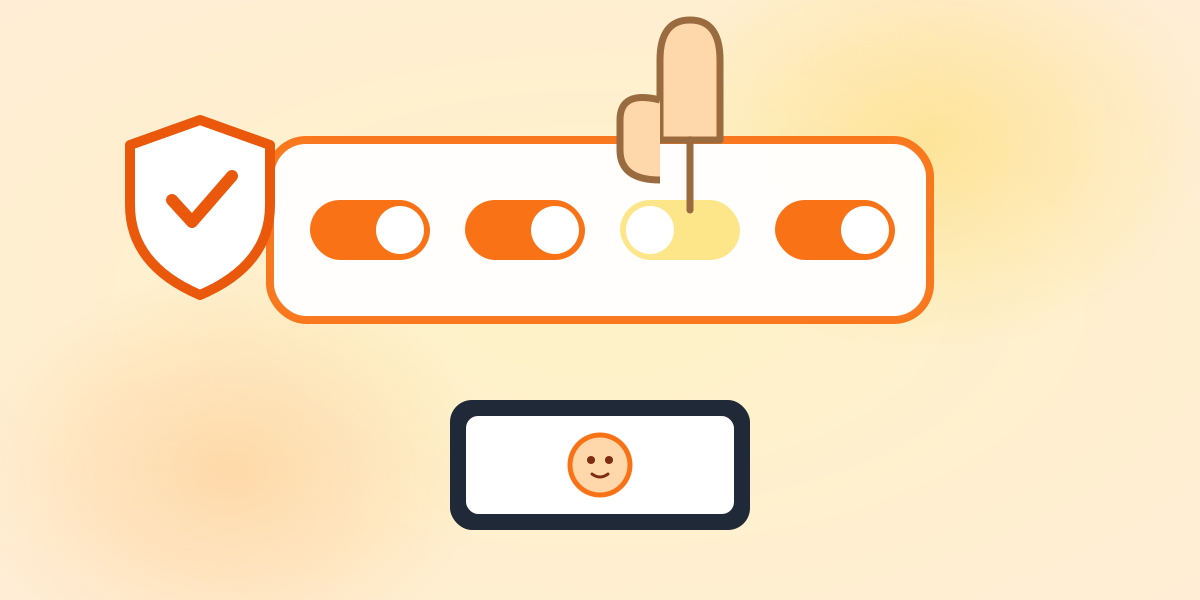
Short answer: “Parental controls” in a kids’ AI app means four different things, and almost no product does all four: (1) usage limits, (2) conversation review, (3) content filtering, and (4) data deletion. Before you pay for anything, work out which of the four you actually want — for most families with children under ten it’s review and limits; for older children it shifts to filtering and deletion — and then check whether the product does that one, not whether it says “parental controls” on the pricing page.
This post is the follow-up to Can parents see their child’s AI chats?, which covered review in depth. Here we put review alongside the other three.
The four controls, and what each really does
1. Usage limits
A cap on how long or how often a child can use the AI. Three flavours exist:
- A daily count of conversations (KidTalk’s model: 5, 50 or 100 talks a day by plan)
- A time budget in minutes, usually with a parent PIN
- A schedule — no use after 8 pm, or only on weekends
What to check: can the child reset or bypass it? A limit the child can switch off is a suggestion, not a control. Also check whether the limit is per device or per account; a per-device limit resets when they pick up a sibling’s tablet.
A limit is also a design statement. We’ve written before that a kids’ product without a ceiling is designed against the family’s interest. A product that has a ceiling is telling you it expects to be one small part of a day.
2. Conversation review
Whether the parent can read what the child said and what the AI replied. We covered the spectrum in detail, from “everything, in the parent’s account” to “nothing, by design.” The five questions from that post still apply: can you read it, is it complete, can the child delete it, is it documented, and does the design expect you to tell the child?
One addition worth making here: review is a control only if someone is reviewing. A product that shows you transcripts you never open is giving you peace of mind, not oversight. That’s fine — “I can, but mostly don’t” is the right posture for ages 9 to 12 — as long as you know which one you’re buying.
3. Content filtering
What the AI will refuse to talk about, or how it handles a hard topic. This is the control that gets the most marketing and is the hardest to verify.
Two kinds exist. Blocklist filtering refuses a list of topics — the child asks about death, the AI says “let’s talk about something else.” Age-adapted handling answers the question at the child’s level — the AI explains death the way a kind adult would to a six-year-old. Our view is that the second is better: children ask hard questions because they need answers, and a refusal sends them to a worse source.
What to check: ask the AI a hard question yourself before your child does. “Why do people die?” and “what’s war?” are good tests. Then read how it handled a scary news question and decide if that’s the voice you want.
4. Data deletion
Whether you can delete your child’s data, how, and how completely. Under COPPA (US), GDPR (EU) and Japan’s APPI, you have a right to deletion; the question is whether the product makes it one tap or an email to a support address.
What to check: is deletion in the app, or do you have to ask? What gets deleted — the account, or also the conversations and the voice recordings? And was the voice ever stored in the first place? A product that never writes the audio to disk has nothing to delete there, which is the best answer. We laid out where a child’s voice actually goes for our own pipeline.
Which controls matter at which age
| Age | What matters most | Why |
|---|---|---|
| 3–6 | Usage limits, age-adapted content | They can’t self-regulate time, and they ask hard questions innocently |
| 7–9 | Review (openly), limits | Reading together turns the AI into a shared topic rather than a private one |
| 10–12 | Review (rarely), deletion | Privacy starts to matter to the child; your job shifts to being able to act if needed |
| 13+ | Filtering, deletion | General chatbots become permitted and structural visibility ends |
The pattern: limits and review are early-years controls; filtering and deletion are the ones that still work when the child is older and more private.
Five questions before you pay
- Which of the four does this product actually do? Make the vendor name them, not just say “parental controls.”
- Can the child turn it off? If the limit or the review lives on the child’s device without a parent lock, assume yes.
- Is review per child or per account? If siblings share, can you tell who said what?
- Is deletion in-app, and does it cover recordings?
- What’s in the paid tier? If the safety features are paywalled, that tells you how the company thinks about safety. Limits and filters should be free; convenience (history in the app, more profiles) is a fair thing to charge for.
Where KidTalk honestly lands
Using the same four headings:
- Usage limits: yes, by daily count (5 free / 50 / 100), reset at midnight Japan time, on the parent’s account — the child can’t change the plan
- Review: every conversation is recorded in the parent’s account, complete, and the child can’t delete it. Reading it inside the app is a Premium feature; disclosure on request is available on every plan (details)
- Filtering: age-adapted handling on top of a safety filter for genuinely unsafe content — not topic blocklists. We’d rather answer “why do people die?” at a six-year-old’s level than refuse it. We’ve also written about the times it got a child’s words wrong
- Deletion: account deletion is in the app and removes the conversation history. Voice recordings are never stored — the audio is processed in memory and discarded — so there is nothing to delete there
Where we score worst against our own checklist: in-app review is paid. Our reasoning is that the safety-relevant part — the record existing, on your account, undeletable by the child — is free on every plan, and what Premium adds is the convenience of reading it on your phone. Reasonable people can disagree, and we’ve written up the free plan without spin so you can.
Frequently asked questions
Is there an app that tracks my child’s ChatGPT use? Third-party monitoring tools exist, but they fight a product designed around the user’s own account. Under 13, using it together on a parent’s account, or a product built to be visible from the start, is the cleaner answer.
Do I need all four? No. Pick the one or two that match your child’s age from the table above, and verify those. A product that does two things well beats one that lists four and does none properly.
Are parental controls a substitute for talking to my child about AI? No, and the controls work better when the child knows about them. The family AI agreement is where to write down both the controls and the conversation.
Summary
- “Parental controls” means four things: limits, review, filtering, deletion. Few products do all four
- Limits and review matter most early; filtering and deletion are what still work with older, more private children
- Verify each control yourself: can the child bypass it, what exactly gets deleted, did the voice ever get stored
- Safety features should be free; convenience is fair to charge for
The best parental control in any kids’ AI app is still a parent who knows what the app does. The four headings above are a way to find that out in ten minutes, before the child has used it for ten hours.
Ready to try KidTalk?
Turn your child's curiosity into stories with safe, friendly AI.
Get started for freeRelated Articles
November 16, 2026
Addition and Subtraction: What Age? Within 10 at 5–6, Carrying in First Grade, and Why Counting on Fingers Is Fine
November 16, 2026
Kanji: what age? 80 in grade 1, reading before writing, and stroke order you trace rather than memorise
November 15, 2026